
VS Code Integrated Terminal Now Defaults to PowerShell. Here's How to Change It Back to cmd.exe
You may notice that the latest version of VS Code uses PowerShell as its default Integrated Terminal. I’m not quite ready to use PowerShell for everything, so I wanted to switch it back to cmd for the time being.
Here’s the new default:
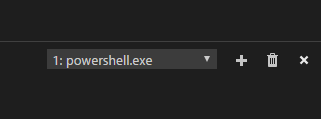
Here’s how to change it to cmd.
1. Open User Settings. File -> Preferences -> Settings
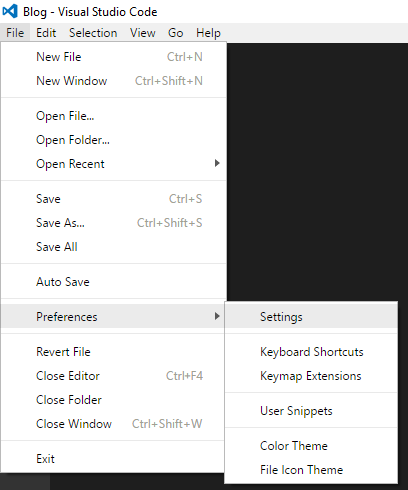
2. Make sure “USER SETTINGS” is selected in the upper right and add the following line in the right pane
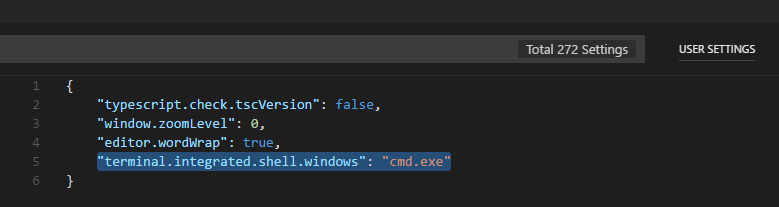
"terminal.integrated.shell.windows": "cmd.exe"For the time being, %COMSPEC% will not work in this setting. I discussed this with the product team and they are going to fix that soon.
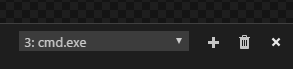
3. You’ll now see cmd.exe when you create a new Integrated Terminal instance.
Jon
Share on LinkedIn
Quick Share: Your custom post text has been copied to your clipboard! Click the button below to open LinkedIn's share dialog, then paste it.
💡 Tip: LinkedIn will open in a new tab. Use Ctrl+V (or Cmd+V on Mac) to paste your text.
Note: LinkedIn will show the article preview. You can add your custom text above it.