
How to Change Raspberry Pi (Raspbian) Hostname
One of the first things you’ll want to do on a Raspberry Pi is change the hostname to something unique on your network. The default name is raspberrypi.
You can change it via editing text files or the UI.
Via Terminal or SSH
You can use the hostnamectl set-hostname [name] command, but that does not update /etc/hosts and causes issues with Docker and other networking services.
I prefer to update /etc/hostname and /etc/hosts manually:
1. Change /etc/hostname
sudo nano /etc/hostname
```text
- Change raspberrypi to your desired hostname- Hit CTRL+O and then ENTER to Save- Hit CTRL+X to Exit

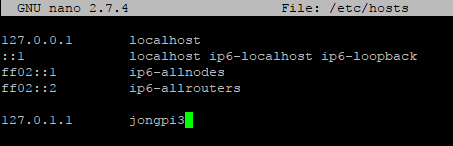
2\. **Change /etc/hosts**
```bash
sudo nano /etc/hosts
```text
- Change raspberrypi to your desired hostname- Hit CTRL+O and then ENTER to Save- Hit CTRL+X to Exit
3\. **Reboot**
```bash
sudo rebootVia Interface
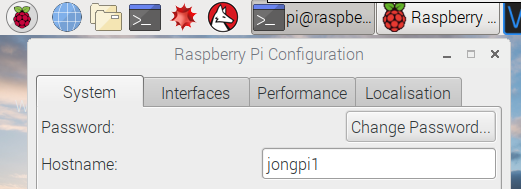
You can also change the hostname via the Raspbian UI:
1. Go to Raspberry Pi Configuration -> System and set a unique hostname and click OK.
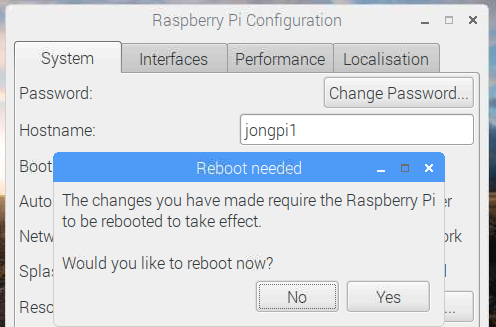
2. Click Yes to reboot the Pi
Jon
Share on LinkedIn
Quick Share: Your custom post text has been copied to your clipboard! Click the button below to open LinkedIn's share dialog, then paste it.
💡 Tip: LinkedIn will open in a new tab. Use Ctrl+V (or Cmd+V on Mac) to paste your text.
Note: LinkedIn will show the article preview. You can add your custom text above it.