
Linux on Windows for Everyone! - how to Enable the Windows Subsystem for Linux (Beta) on Windows 10 Anniversary Update
The most anticipated Windows 10 Anniversary Update developer feature is now available for everyone…not just Windows Insiders.
Step 0: Install Windows 10 Anniversary Update via Windows Update
Go to Windows Update, get updates. It should automatically install.
Step 1: Enabled Developer Mode
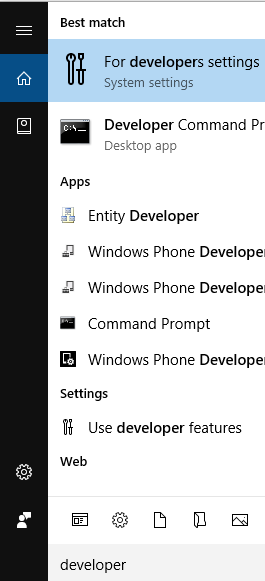
Hit the Windows key and type “developer”. Click on “For developer settings”
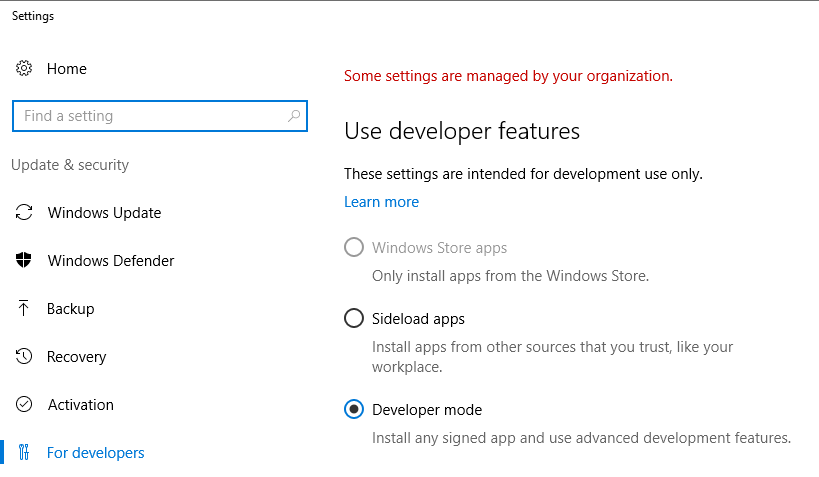
Select the “Developer mode” radio button.
Step 2: Turn on Windows Subsystem for Linux (Beta)
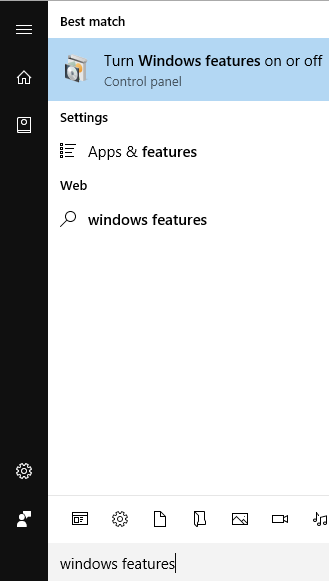
Hit the Windows key, type “Windows features” and select “Turn Windows features on or off”
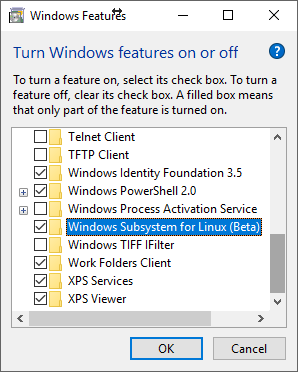
Select “Windows Subsystem for Linux (Beta)” click OK. Let it install and restart.
Step 3: Install Ubuntu on Windows
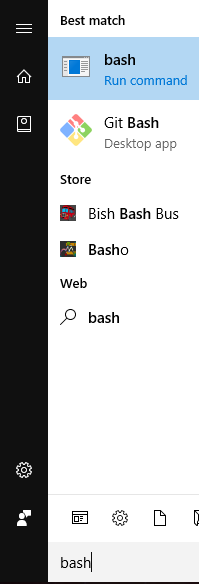
Hit the Windows key, type “bash” and select “bash”
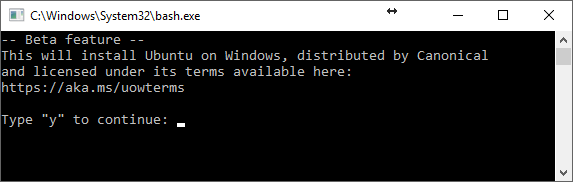
Type “y” and enter.
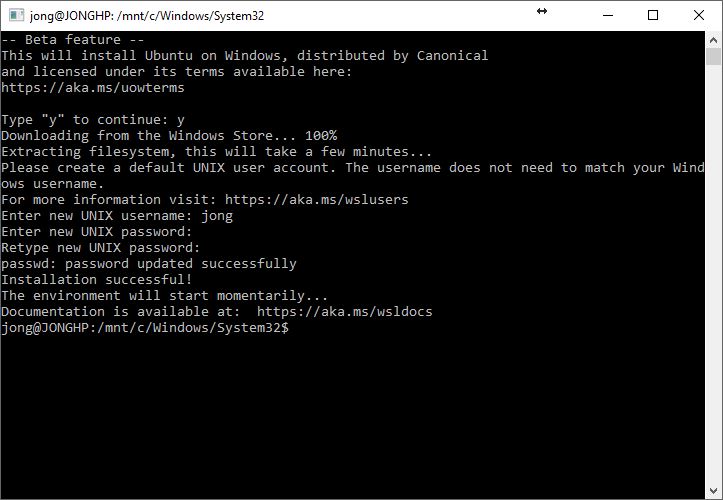
Wait for Ubuntu to be installed.
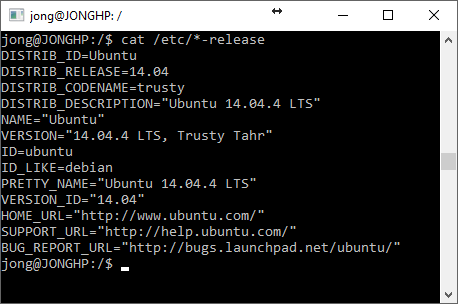
Run Linux commands on Windows!
Your Linux files will be located here: C:\Users{username}\AppData\Local\lxss\
Jon
Share on LinkedIn
Quick Share: Your custom post text has been copied to your clipboard! Click the button below to open LinkedIn's share dialog, then paste it.
💡 Tip: LinkedIn will open in a new tab. Use Ctrl+V (or Cmd+V on Mac) to paste your text.
Note: LinkedIn will show the article preview. You can add your custom text above it.