

How to Control a Sphero SPRK+ with a Raspberry Pi 3 and Node.js
I’m working on a demo that involves streaming Sphero data through the Azure IoT stack. I got my Sphero SPRK+ last week and quickly discovered that it only has Bluetooth Low Energy (BLE) enabled and not regular Bluetooth. So, I couldn’t get it to connect to my Windows or OSX machines because they don’t have a BLE chipset. I suspect that Sphero will push Bluetooth support via a firmware update later this fall. Until then, you can do the following to code against your SPRK+ using a Raspberry Pi 3, which ships with BLE.
Raspberry Pi 3
Get a Raspberry Pi 3 and plug it in. Monitor, keyboard, mouse, network cable.
Sphero SPRK+
Get a Sphero SPRK+ and plug it in.

Install Raspbian
Flash Raspbian Jessie onto a MicroSD card and boot up your RPI3. Use this blog post if you need help with this step.
Install TightVNC
This is helpful for accessing the RPI3 from your desktop. This step isn’t required if you want to control RPI3 using locally keyboard and mouse.
Install on Desktop: http://www.tightvnc.com/download.php
Install on RPI3: https://www.raspberrypi.org/documentation/remote-access/vnc/
Use the following to start VNC Server on your RPI3
vncserver :1
```text
Use the following to get your RPI3 IP Address.
```bash
hostname -I
```python
## 
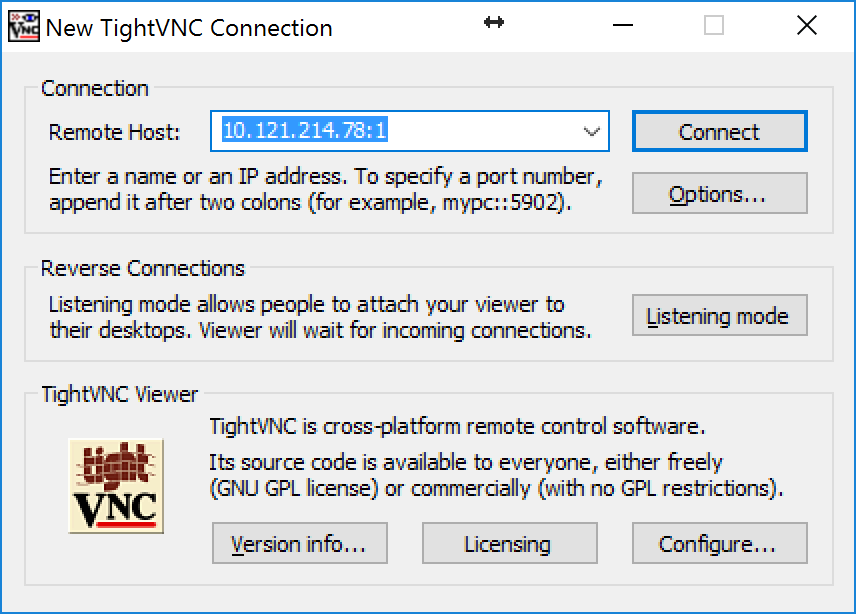
Then use that IP when connecting from your desktop
## Pair the SPRK+
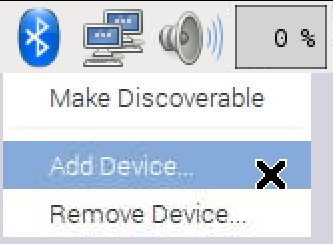
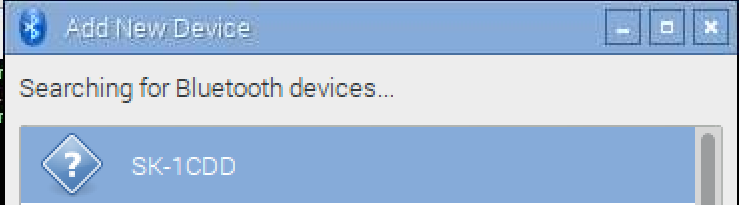
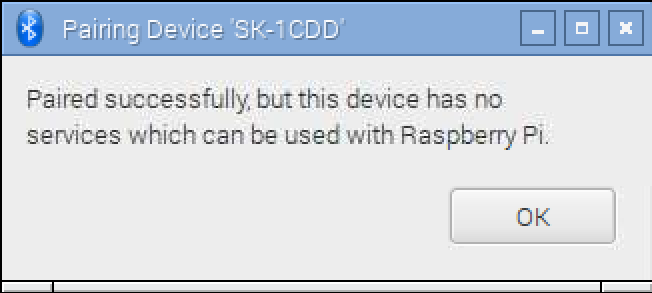
It will be named SK-XXXX.
You will need to click OK on your RPI3 here:
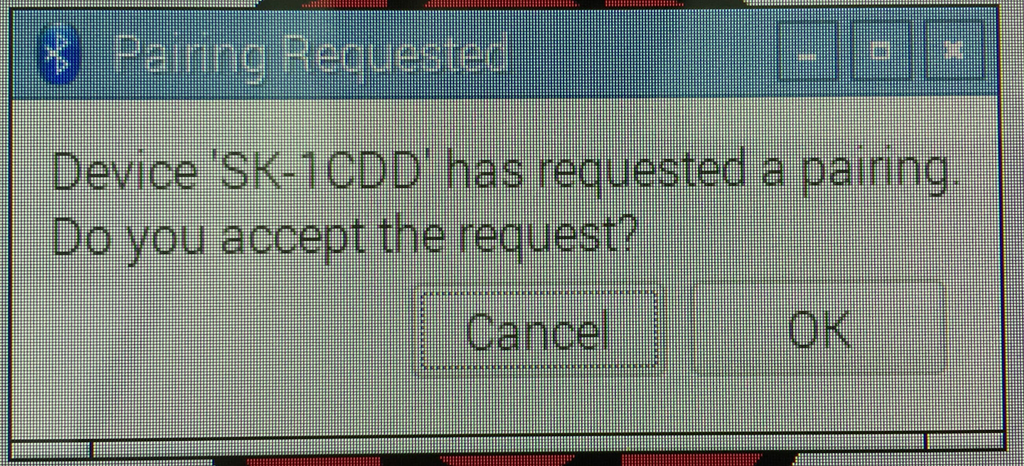
You might see this…ignore it.
## Get SPRK+ BLE Address
Run this in Terminal
```bash
bluetoothctl
```markdown
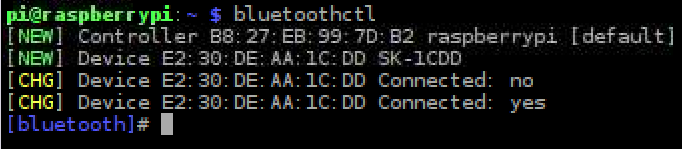
Copy the SPRK+ BLE Address. You will need it later.
## Install Node.js on RPI3
Follow instructions in [this blog post](/install-nodejs-raspbian/) to get Node.js onto the RPI3
## Install Sphero SDK
```bash
sudo npm install spherosudo npm install noble
```sql
You can ignore any errors you get with the noble install
## Create Node.js File
```bash
cd ~mkdir spherocd spherotouch sphero.jsleafpad sphero.js
```markdown

## Copy Code to Node.js File
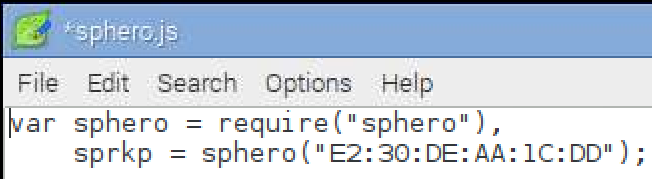
## Change the BLE Address to your SPRK+ BLE Address
Open the sphero.js file and change the BLE Address to your SPRK+ BLE Address
## Run and Watch with Delight
```bash
sudo node sphero.jsShare on LinkedIn
Quick Share: Your custom post text has been copied to your clipboard! Click the button below to open LinkedIn's share dialog, then paste it.
💡 Tip: LinkedIn will open in a new tab. Use Ctrl+V (or Cmd+V on Mac) to paste your text.
Note: LinkedIn will show the article preview. You can add your custom text above it.