
Dispatch - A GitHub Copilot CLI Session Explorer for Your Terminal
We just had a brownout in Seattle. My computer rebooted and I lost all my active Copilot CLI instances. Every single one. I had sessions running across multiple projects - some mid-refactor, some in the middle of debugging hairy issues.
I needed to get them all back. Fast.
That’s why I built dispatch. I spent a couple weeks on it, and it’s already saved me more time than I put in.
- Website: jongio.github.io/dispatch
- GitHub: github.com/jongio/dispatch
The Problem
If you use GitHub Copilot CLI a lot, you’ve probably run into this: you know you had a session where you figured something out, but you can’t find it. Maybe it was yesterday, maybe last week. You remember bits of the conversation but not which directory you were in or what branch you were on.
The default session experience wasn’t cutting it for me. I needed to search across ALL my sessions, see what I’d actually talked about, and jump right back in. So I built a tool to do exactly that.
What Is Dispatch?
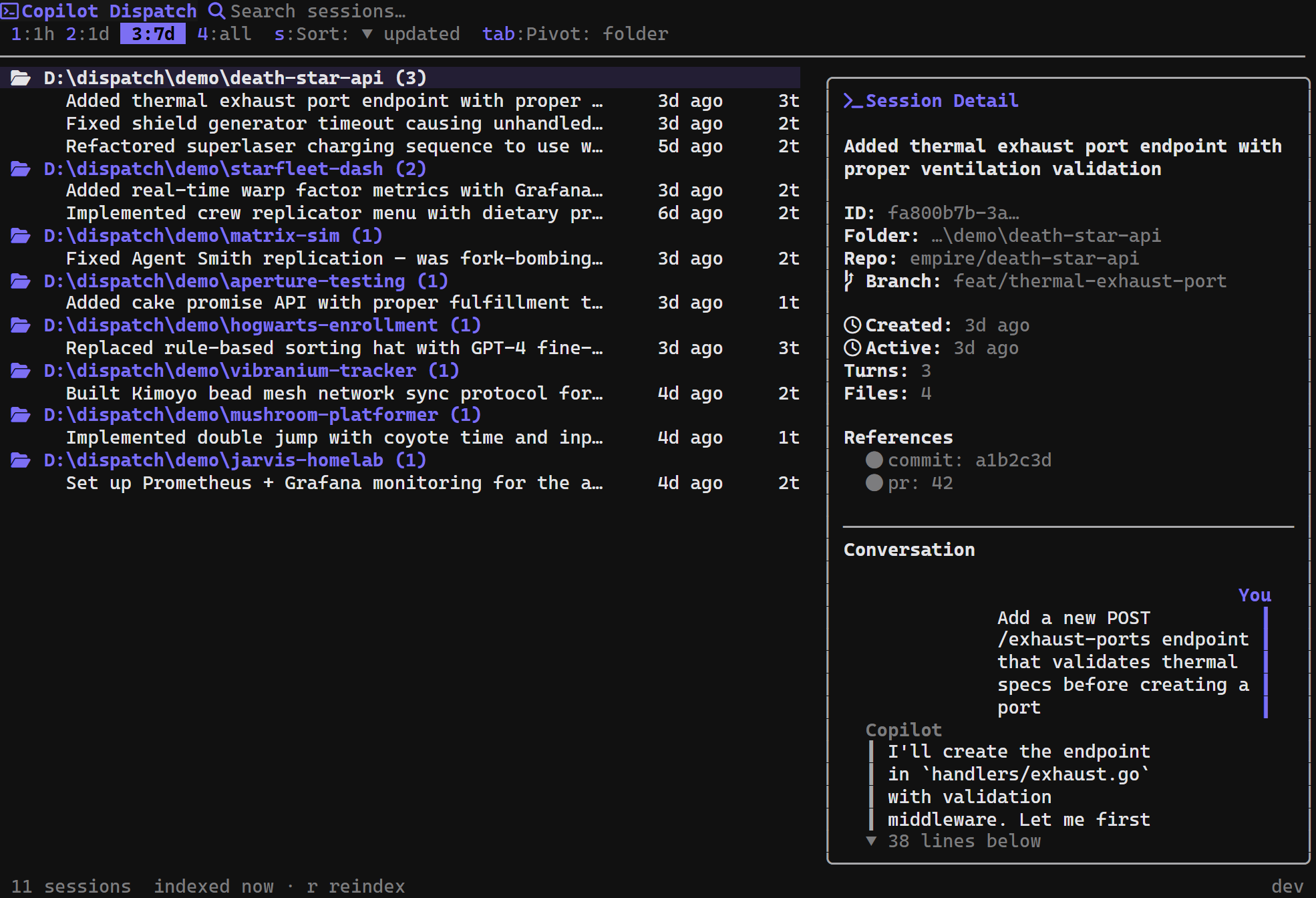
Dispatch is a terminal UI for browsing and launching GitHub Copilot CLI sessions. It reads your local session store and gives you a searchable, sortable, filterable interface to find and resume any session.
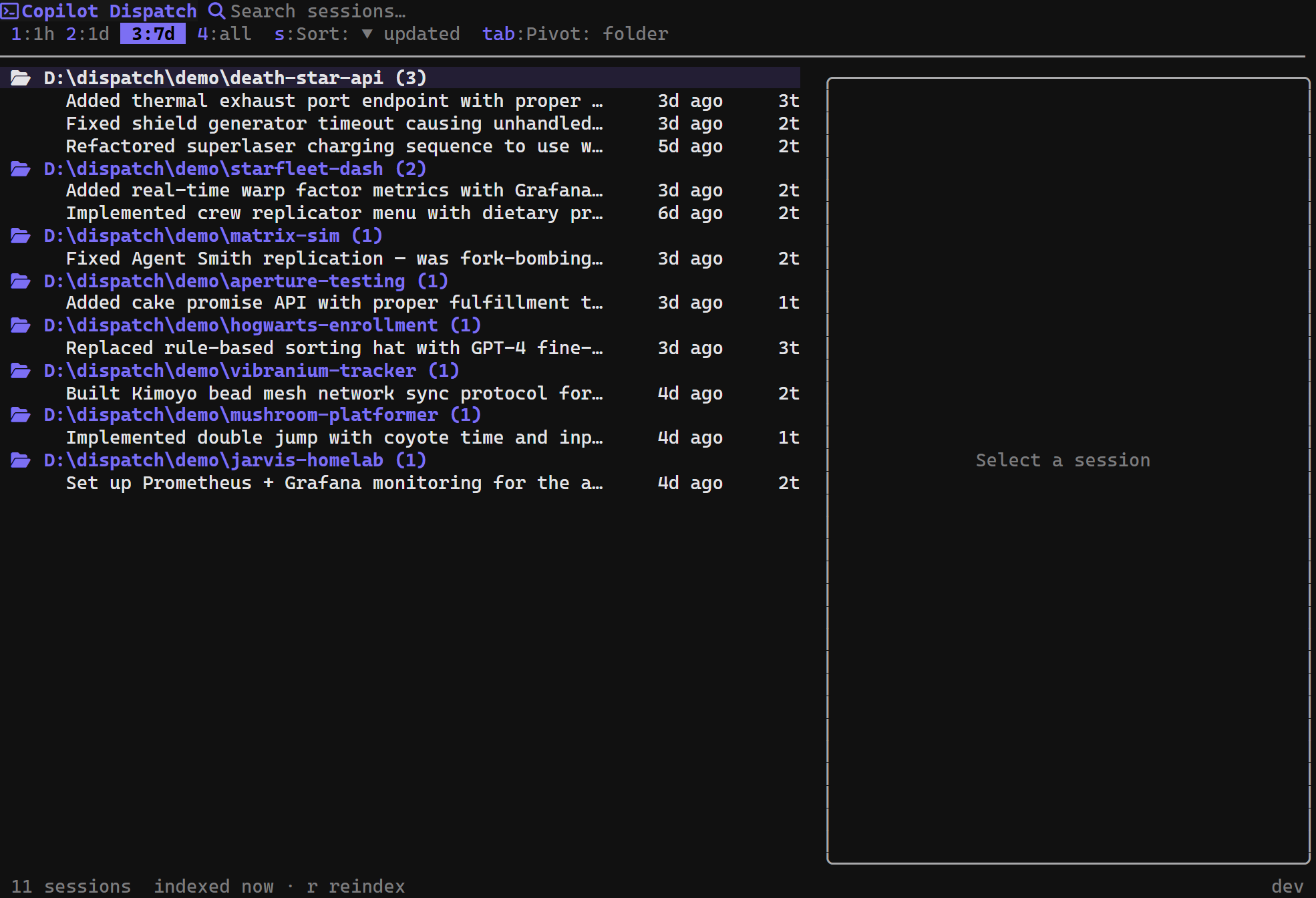
Here’s what it looks like in action:
Search Everything
Press / and start typing. Dispatch does a two-tier search - it instantly checks session summaries, branches, and repos, then after a brief pause kicks in a deep search across your full conversation history, checkpoints, files, and refs.
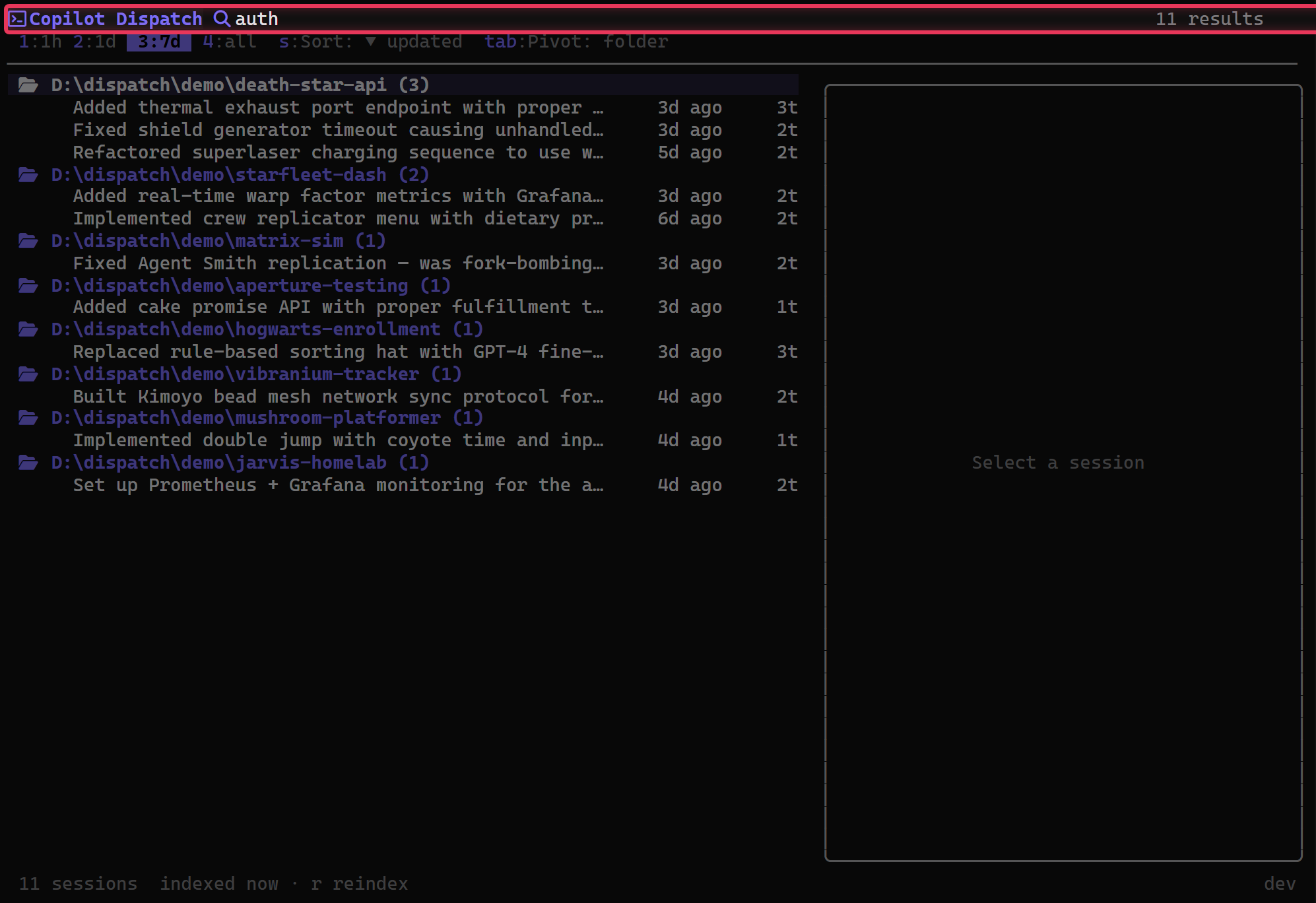
I’ve used this so many times to find sessions I would’ve otherwise lost. “Wait, which session did I debug that auth issue in?” Just search for “auth” and there it is.
Preview Before You Launch
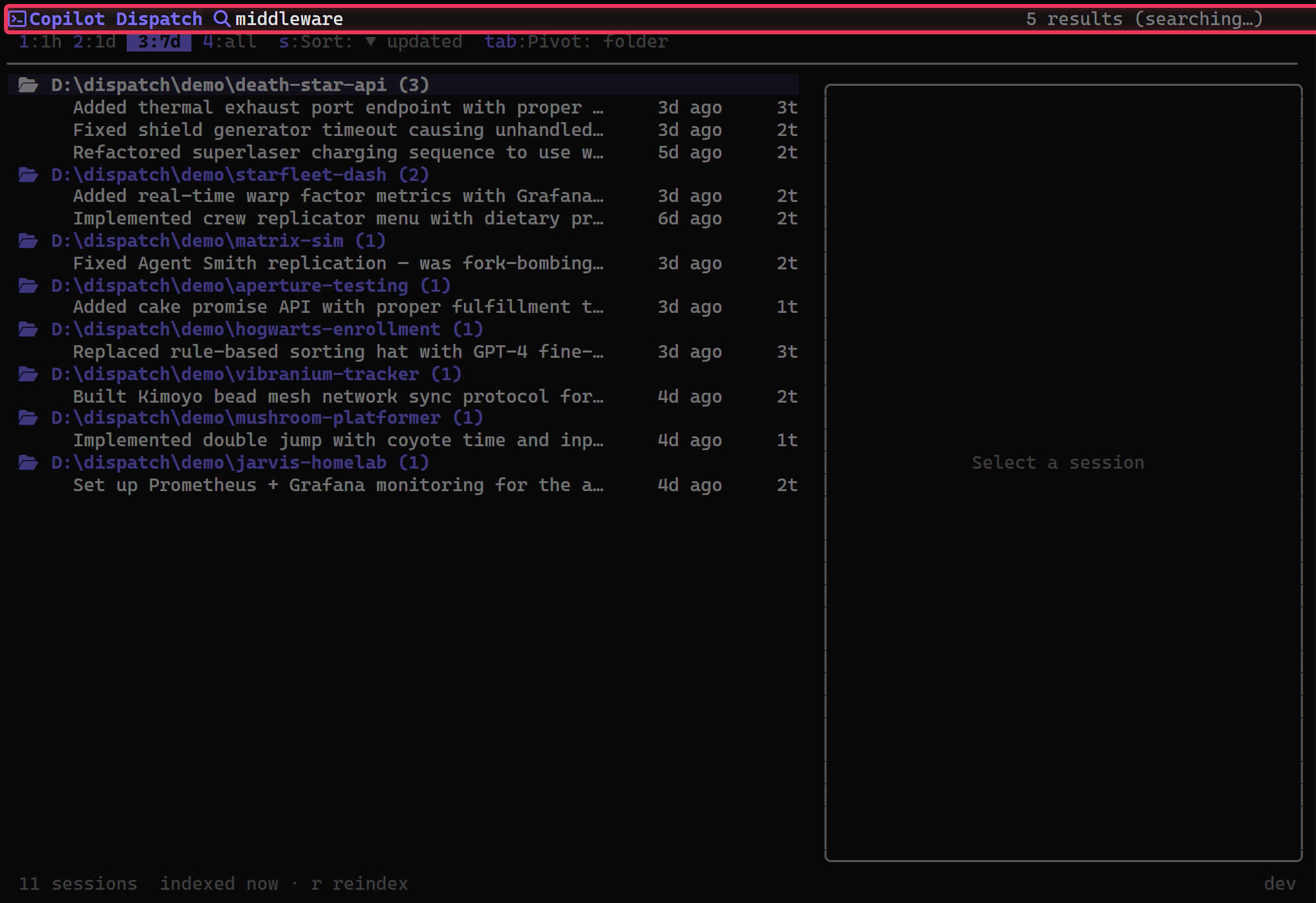
Press p to toggle the preview pane. It shows you the full conversation you had with Copilot - rendered as chat bubbles with your messages and Copilot’s responses. Plus checkpoints, files touched, and git refs. This is huge for figuring out “is this the session I’m looking for?” without actually launching it.
Group and Organize
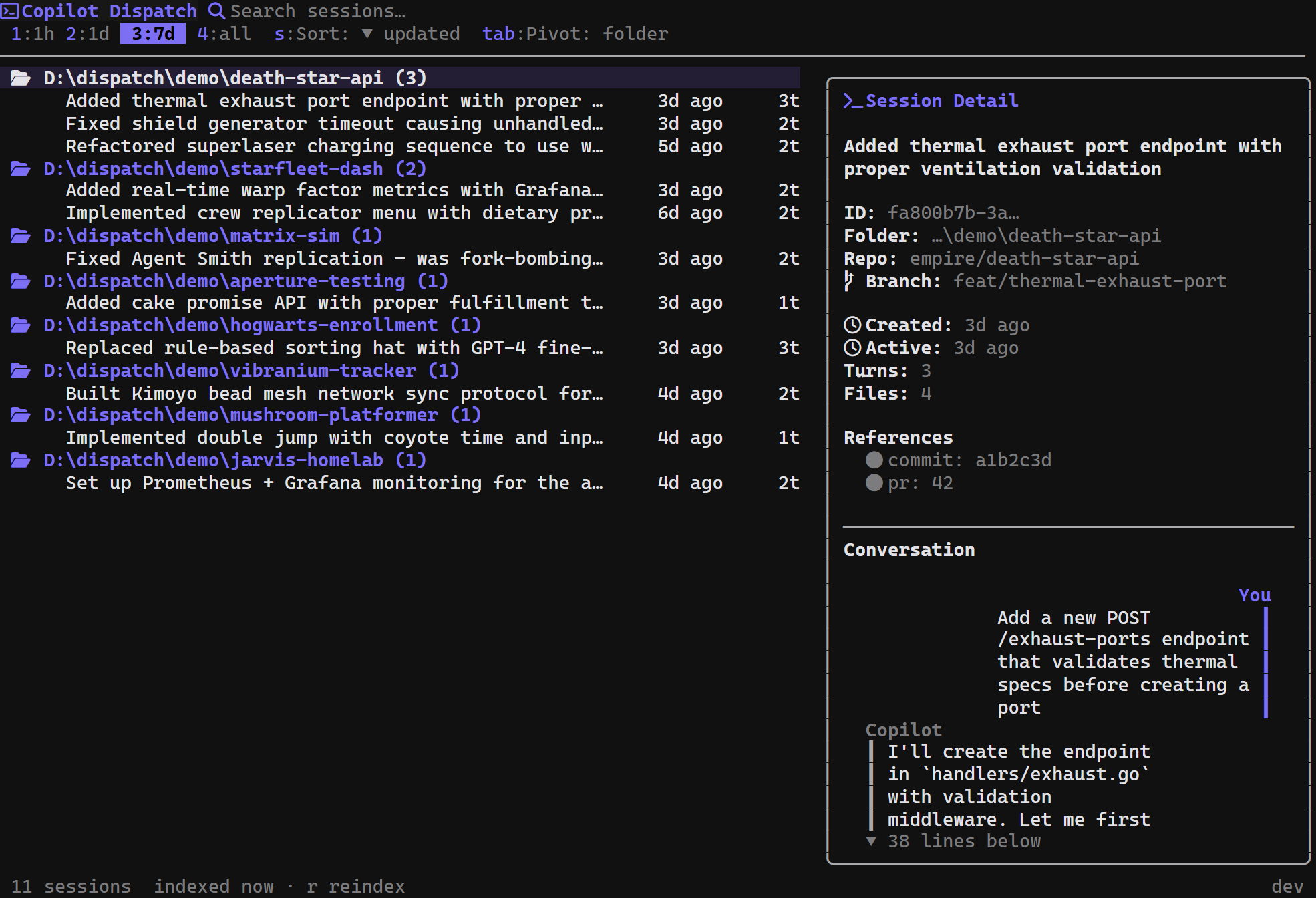
Press Tab to cycle through grouping modes - flat list, by folder, by repo, by branch, or by date. I usually work in folder mode so I can see all sessions for a specific project together.
Filter by Directory
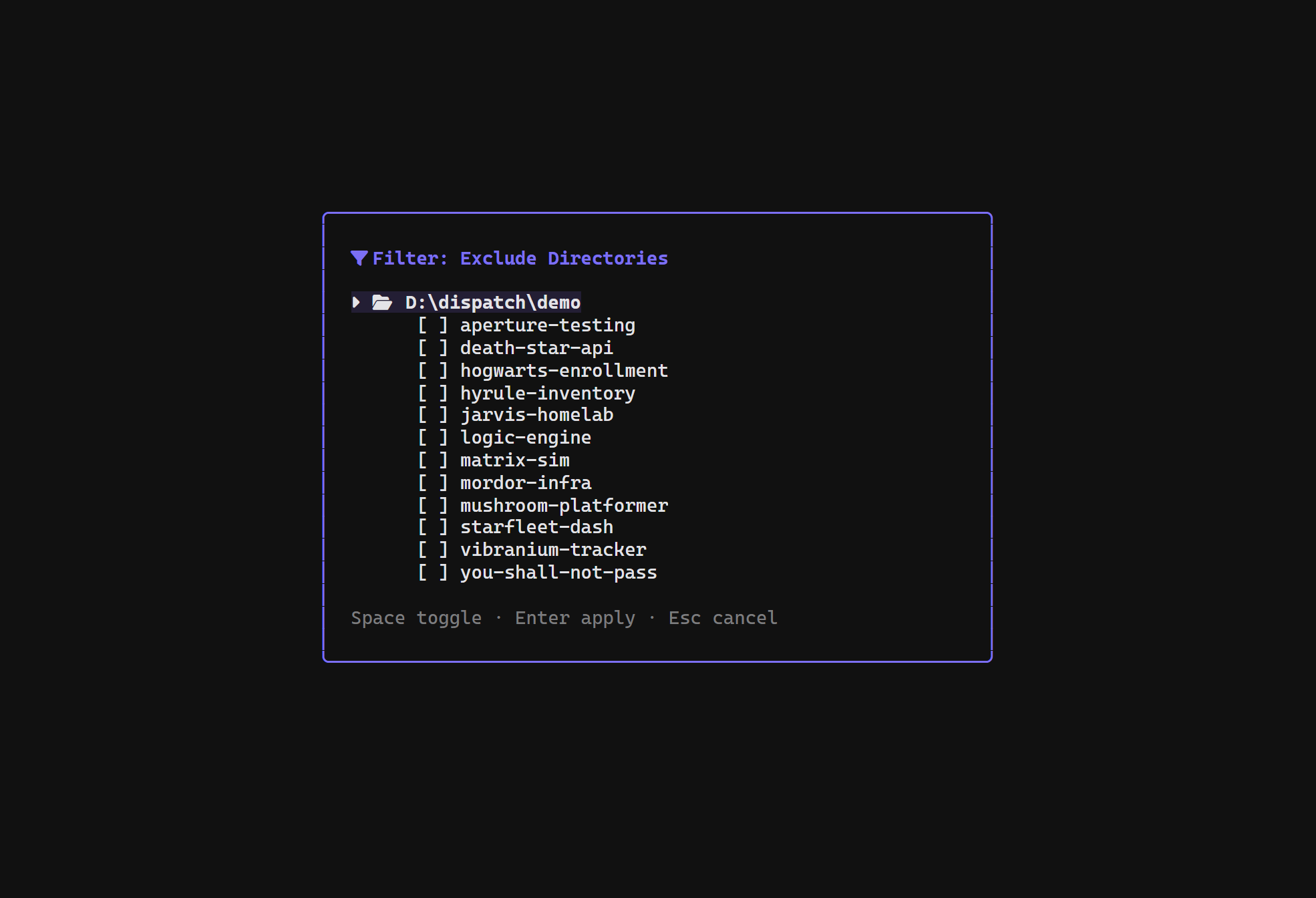
Press f to open the directory filter. You can exclude directories you don’t care about - like repos you were just poking around in. The filter persists across restarts.
Time Range Filtering
Press 1 through 4 to filter by time range - last hour, last day, last 7 days, or all sessions. When you just rebooted and need to find today’s sessions, press 2 and you’re there.
Customize Everything
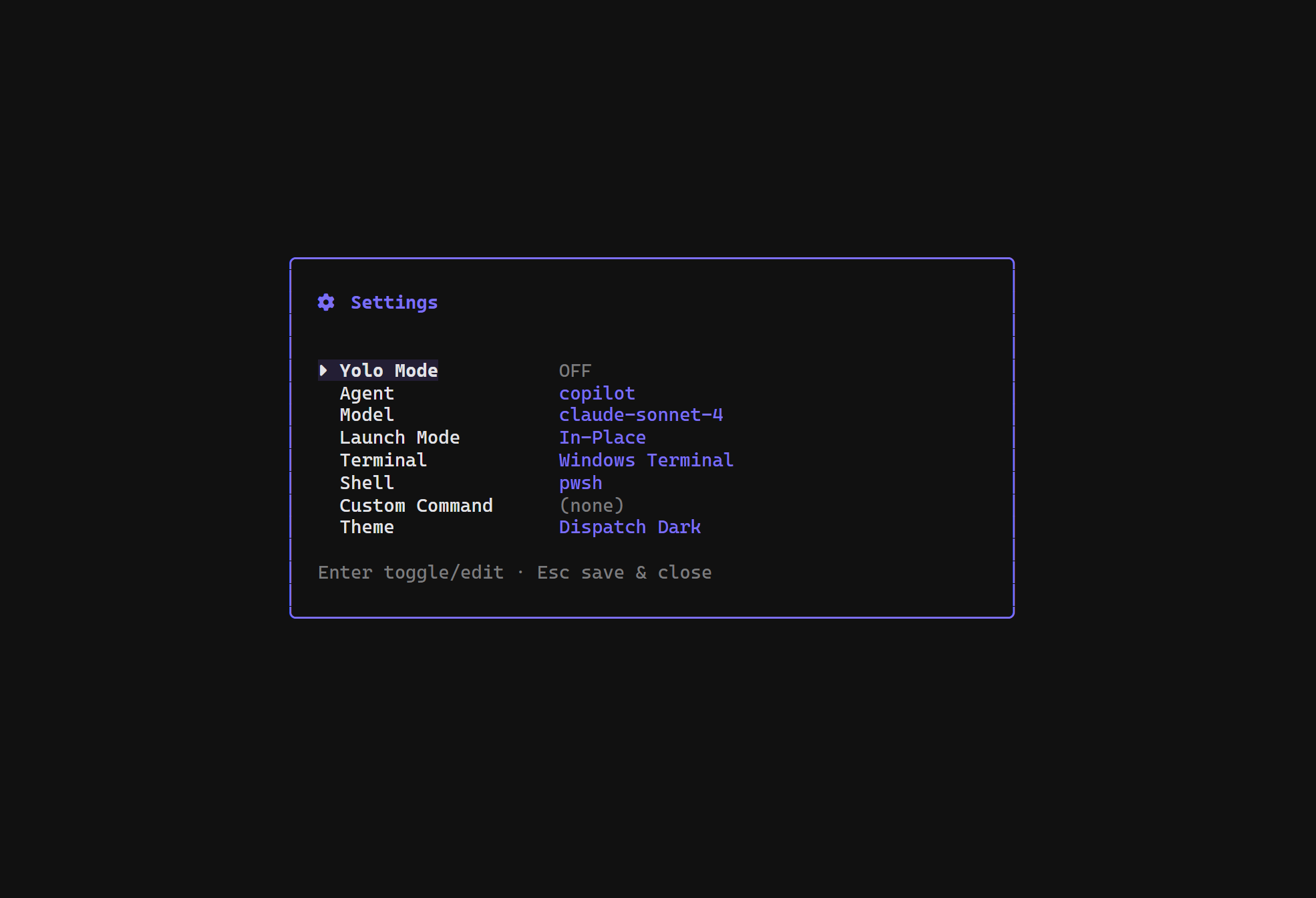
Press , to open settings. You can configure:
- Yolo Mode - auto-confirm all Copilot actions
- Agent and Model - pick your preferred Copilot agent and model
- Launch Mode - open sessions in-place, new tab, new window, or split pane
- Terminal and Shell - pick your preferred terminal and shell
- Custom Command - run your own script instead of the default launch
- Theme - 5 built-in themes with auto light/dark detection
Multiple Launch Modes
This was a big deal for me. I wanted flexibility in HOW sessions open:
Enter- uses your default launch mode (configurable)t- new tabw- new windowe- split pane (Windows Terminal)
I typically run dispatch in one pane and launch sessions in another. It’s a nice workflow.
Keyboard-Driven
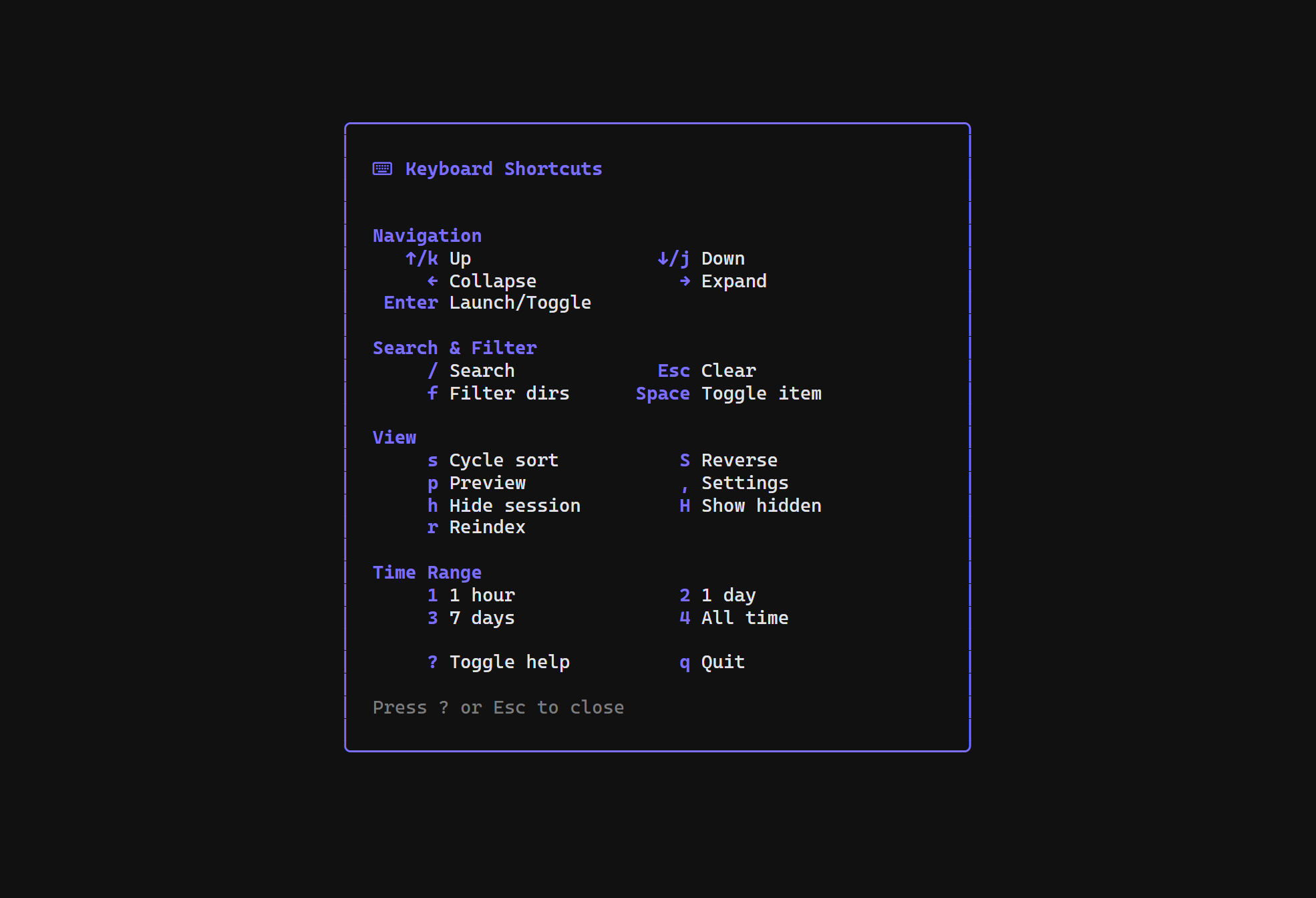
Everything is keyboard accessible. Press ? to see all the shortcuts:
Mouse works too - click to select, double-click to launch, scroll wheel in the preview pane. But I’m mostly a keyboard person.
The Brownout Story
So back to that Seattle brownout. My computer came back up, I opened a terminal, ran dispatch, and immediately saw all my recent sessions. I pressed 2 to filter to today’s sessions, scanned through them, previewed a couple to remember where I’d left off, and relaunched them one by one. The whole recovery took maybe two minutes.
Before dispatch, I would’ve been digging through file system paths trying to piece together which sessions were active. That’s time I don’t get back.
Installation
Windows (PowerShell):
irm https://raw.githubusercontent.com/jongio/dispatch/main/install.ps1 | iexLinux / macOS:
curl -fsSL https://raw.githubusercontent.com/jongio/dispatch/main/install.sh | shFrom source (Go 1.26+):
go install github.com/jongio/dispatch/cmd/dispatch@latestThe installer also creates a disp alias so you can type less.
Built With
Dispatch is built with Go using the Bubble Tea TUI framework. It reads directly from the Copilot CLI’s SQLite session store - no extra services, no API calls, no dependencies beyond the single binary.
It runs on Windows, macOS, and Linux (amd64 and arm64).
Try It Out
I use Windows Terminal with PowerShell 7 as my daily setup, so that’s where dispatch gets the most testing. I’d love for folks on other setups to give it a spin - different terminals, different shells, macOS, Linux.
Check it out:
- Website: jongio.github.io/dispatch
- GitHub: github.com/jongio/dispatch
Give it a try and file an issue if you run into anything. I’m actively working on it and want to make it useful for anyone who lives in Copilot CLI.