
How to Create a Windows 7 Custom Key Command
Sometimes you want a key command (keycommand) that works across all of your Windows Desktop. For example, let’s say that you write a lot of email and you want to be able to pop open Gmail’s compose page quickly no matter what else you are doing in Windows. Here’s how you’d do that:
- Create a new shortcut on your desktop:
Right-click on your desktop and choose New, Shortcut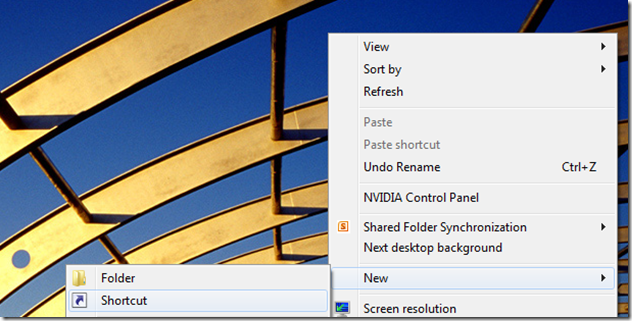
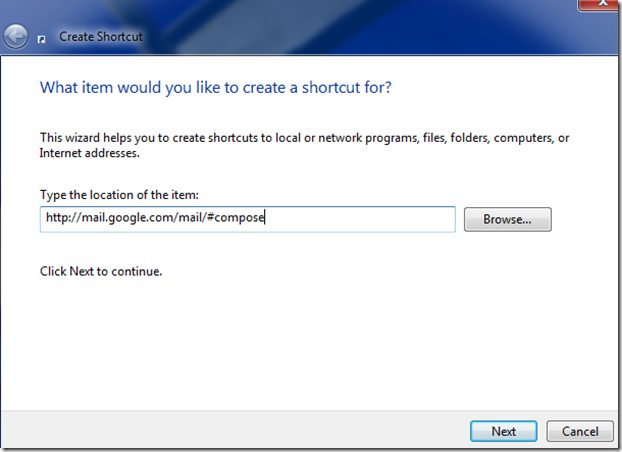
- Paste in the Gmail compose address, https://mail.google.com/mail/#compose, (or open a program, or another webpage, whatever you want to do), click Next
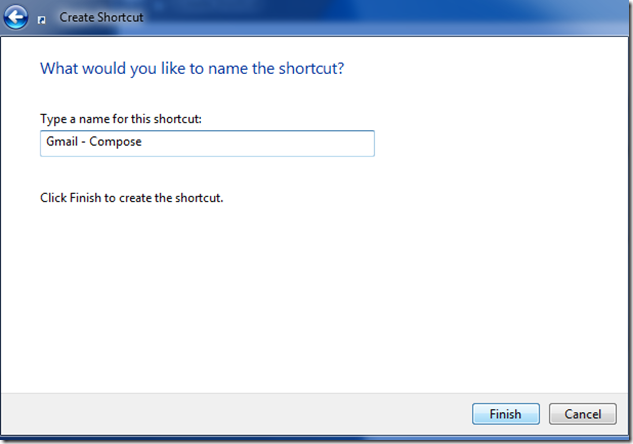
- Give it a name:
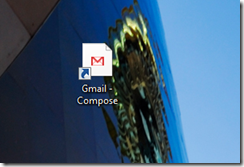
- You now have a new icon on your desktop:
-
Right click on that Icon, Select properties
-
Click inside of the Shortcut Key textbox and hold down Ctrl Shift and the letter G, Click OK
-
Go back to your desktop and hit the Ctrl+Shift+G keys and Gmail’s compose screen should open.
You can now use that key command combination anytime you want quick access to a task.
HTH,
Jon
Share on LinkedIn
Quick Share: Your custom post text has been copied to your clipboard! Click the button below to open LinkedIn's share dialog, then paste it.
💡 Tip: LinkedIn will open in a new tab. Use Ctrl+V (or Cmd+V on Mac) to paste your text.
Note: LinkedIn will show the article preview. You can add your custom text above it.