
How to Validate Area & Iteration Paths in TFS
2 min read
Run a TFS query to find the AreaId and IterationId that you don’t want to allow. In my case it was 489 for both Area and Iteration
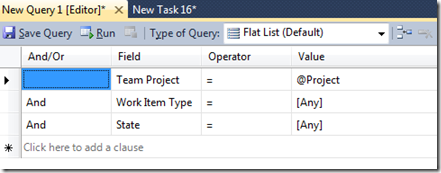
- Create a new query:
- Select the AreaId and IterationId columns
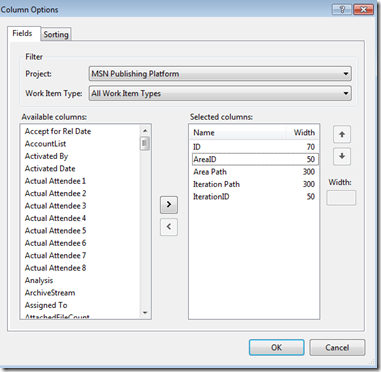
- Run query. Record both the AreaId and IterationId.

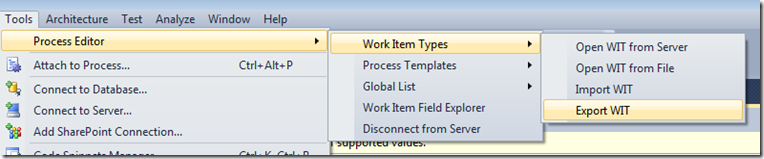
- Export the Work Item using the TFS Power Tools. Tools->Process Editor->Work Item Types –> Export WIT
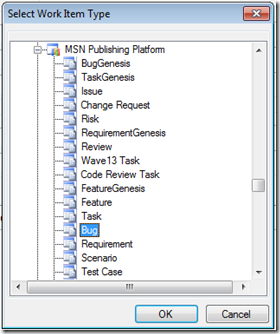
- Select the Type you want to validate:
- Save it locally:
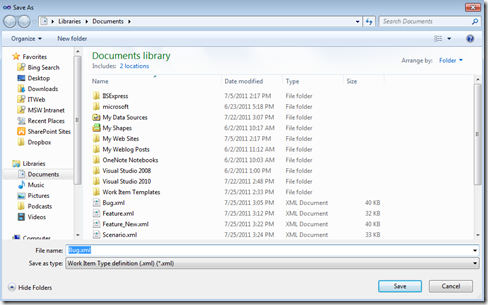
Open in Notepad
Scroll down to the end of the field definitions: (I like to put at the end, but you can put where ever you want to)
Paste the following snippet right after the last FIELD definition. REPLACE 489 with your own number.
<FIELD name="Work Item Iteration" refname="Custom.WorkItemIteration" type="String">  <HELPTEXT>Hidden field used to prevent users from setting improper iteration path values </HELPTEXT>   <COPY from="value" value="Valid Path" />   <WHEN field="System.IterationId" value="489">      <COPY from="value" value="Project Root" />   </WHEN>
   <PROHIBITEDVALUES>      <LISTITEM value="Project Root" />   </PROHIBITEDVALUES></FIELD>
<FIELD name="Work Item Area" refname="Custom.WorkItemArea" type="String">  <HELPTEXT>Hidden field used to prevent users from setting improper area path values.HELPTEXT>   <COPY from="value" value="Valid Path" />   <WHEN field="System.AreaId" value="489">      <COPY from="value" value="Project Root" />   </WHEN>
   <PROHIBITEDVALUES>      <LISTITEM value="Project Root" />   </PROHIBITEDVALUES></FIELD>
Save the file.
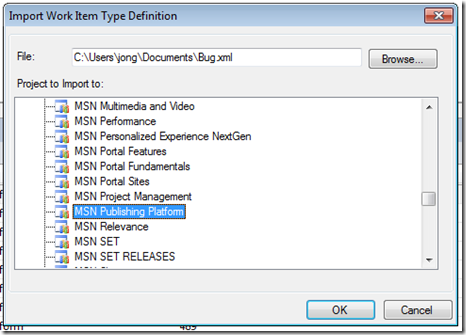
Import the modified file into TFS using the Power Tools:

- Select your file and Project. Click OK.
HTH,
Jon
Share: