
How to bulk update work items in TFS with Work Item Templates
1 min read
TFS allows you to update work items in bulk by applying a template to them. Here’s how:
Install the TFS Power Tools
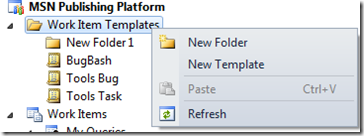
Right click on Work Item Templates in Team Explorer and select New Template
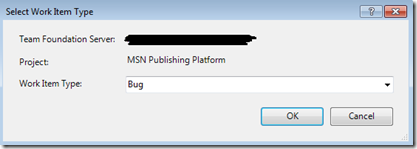
- Select your work item type:
- Fill out the fields that you want to change. For this template I wanted to bulk items items to change their State to Not Started

Run a query that contains all the items that you want to apply the template to then select the items.
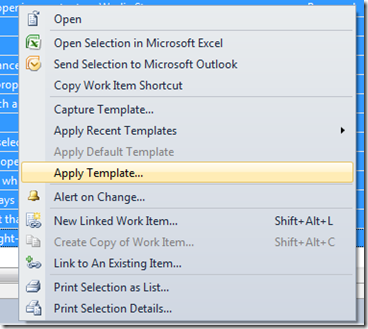
Right click and choose Apply Template…
- Select the template you want to apply.
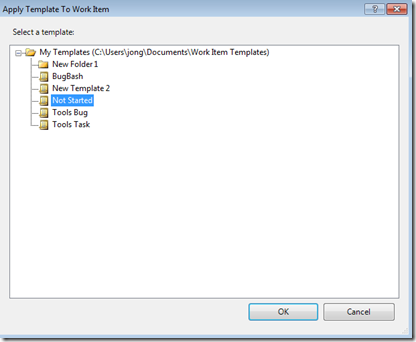
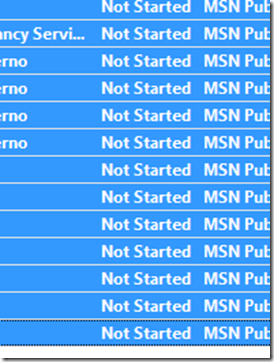
- Click OK. As you can see below the State of these items has been updated to Not Started
- Click Save
HTH,
Jon
Share: