
How to force TFS Work Item layout groups to consume the minimal amount of screen real estate.
I wanted to simplify my TFS work item display so I removed a bunch of columns and and groups. It turns out you need those groups or you get something like this:
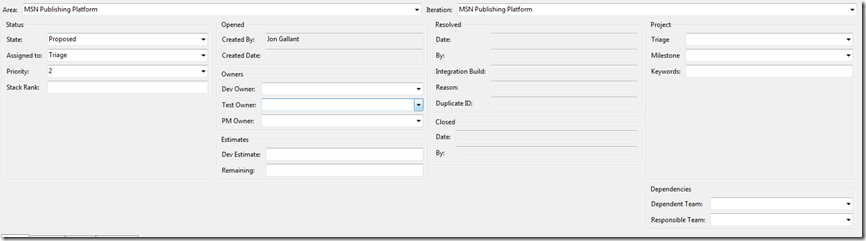
Not good since it takes up so much vertical space.
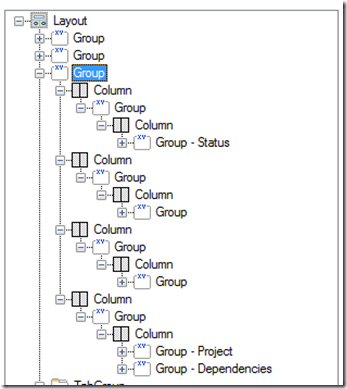
You need to add a wrapper column around each of the columns so that the contents flow inside each column:
You start with this:
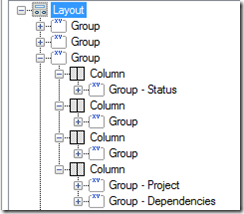
Add a new group to each column:
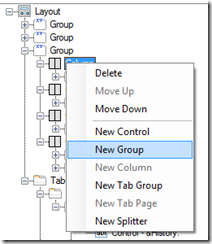
Move the existing column to the new group you just created:
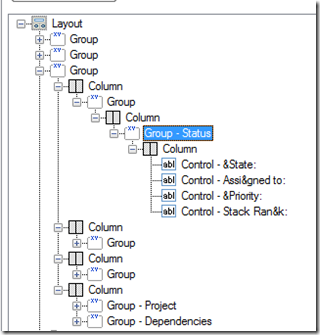
Set the width of the column to 25 (if you have 4 columns)
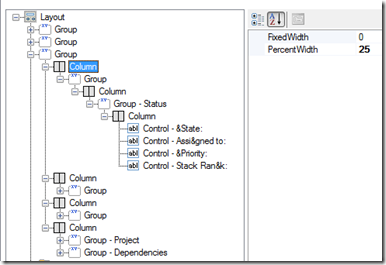
Your new layout should look like this:
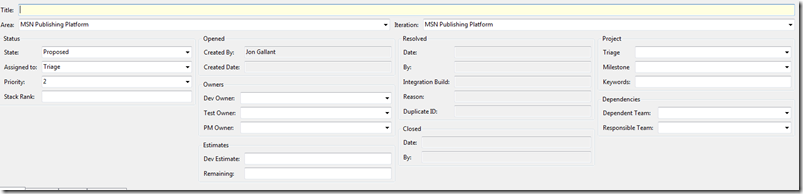
Save it out and you’ll get this. Still not optimal, but at least we are now saving some vertical space.
Jon
Share on LinkedIn
Quick Share: Your custom post text has been copied to your clipboard! Click the button below to open LinkedIn's share dialog, then paste it.
💡 Tip: LinkedIn will open in a new tab. Use Ctrl+V (or Cmd+V on Mac) to paste your text.
Note: LinkedIn will show the article preview. You can add your custom text above it.