
How to borrow Kindle Books from your public library for free
There are a ton of free books to be borrowed from your public library. It’s really easy to do with a Kindle because Amazon.com uses whispernet to wirelessly sync the books with your Kindle…no cable required like with the Nook. (See my other post for an in depth comparison between the Kindle and the Nook
1. Go to your library’s website. Mine is: https://www.kcls.org. Get an account if you don’t already have one. 2. Find the link to the digital library. KCLS (King County Library System) uses OverDrive and your library most likely does as well. I find the KCLS OverDrive site by scrolling down and clicking on the “Downloads” link. 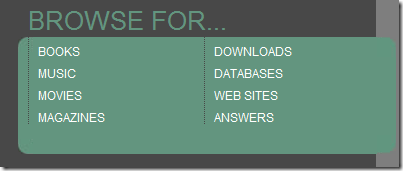 3. After you click Downloads click the “Browse OverDrive eBooks”
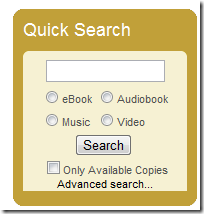
 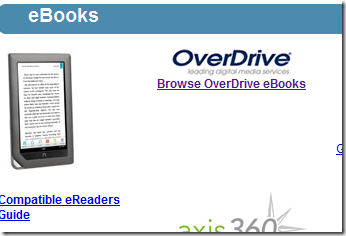 4. The best way to find Kindle books is to click the Advanced Search link in the upper right hand corner
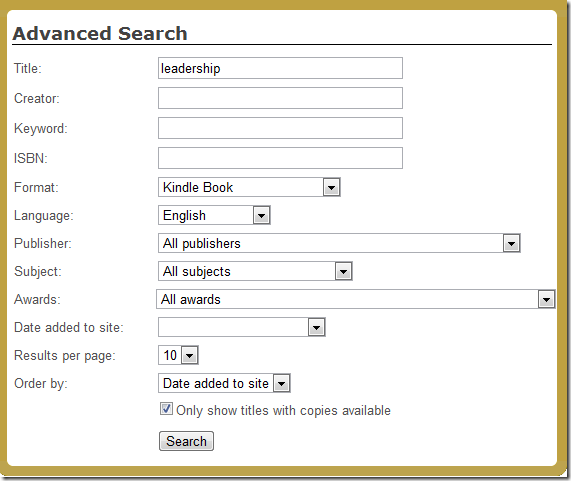
  5. On the Advanced Search form select Kindle books in the Format dropdown and enter your search criteria. For this post I searched for ‘leadership’ in the title and selected English as the Language. I also checked the “Only show titles with copies available” checkbox so it only returns book that I can immediately checkout.
  6. That search returned a bunch of good books, but for this post I’m going to choose “Bo’s Lasting Lessons” a great book.
 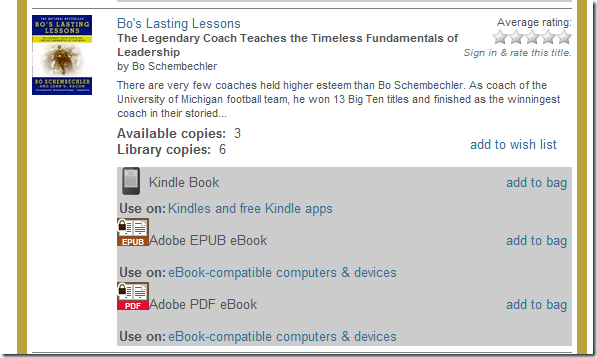 7. Click on the “add to bag” link to the right of the Kindle Book icon. 8. That redirects you to the Book Bag page
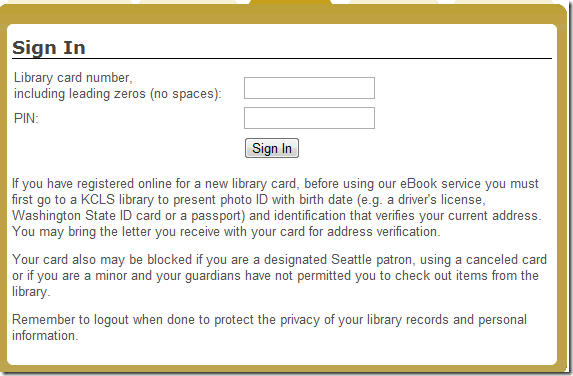
 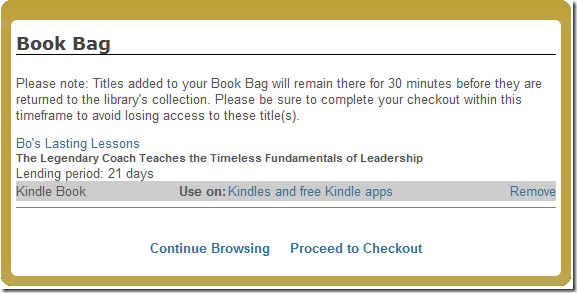 9. From there you can either add other books to your book bag or you can checkout. Click on the “Proceed to Checkout” link to send the book to your Kindle. 10. That will take you to the Sign In page. Enter your library card information and click Sign In.
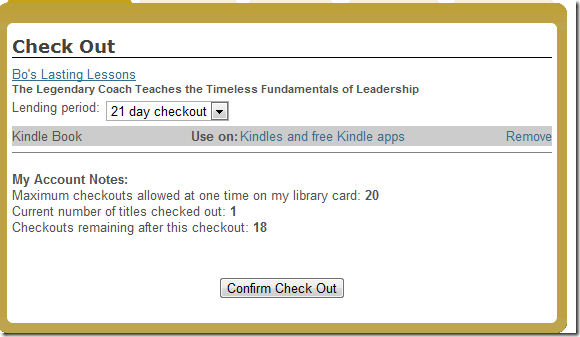
  11. After you sign in you’ll be redirected to the Check Out page. Click “Confirm Check Out”. Notice that the Lending Period says 21 days. You can either change that to another period or just leave as is depending on how long you want to borrow the book.
  12. You’ll then be redirected to this confirmation page that links to Amazon.com. Click on the “Get for Kindle” link.
 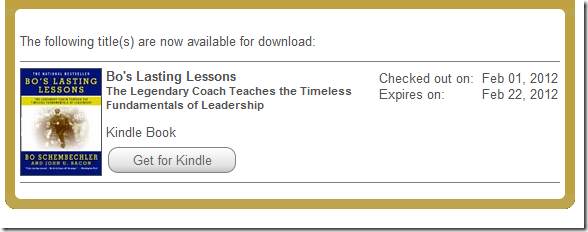 13. That will redirect you to Amazon.com
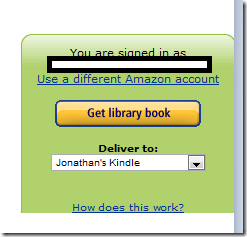
 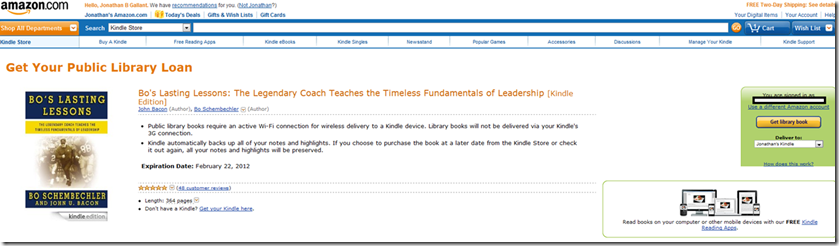 15. On the right side of the page you select the Kindle (or other device) that you want to send it to and then click “Get Library Book”
  16. You’ll then get a confirmation page where you can also download the book locally if you want to manually transfer.
 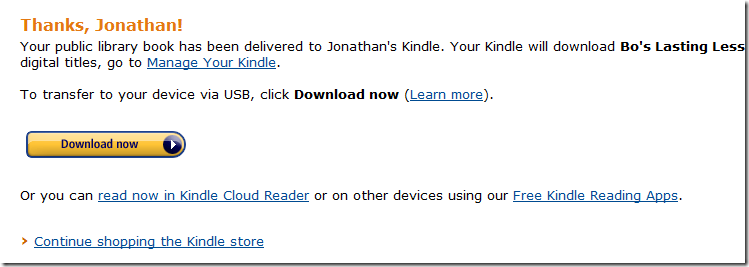 Then go to your Kindle and your book will be there. There’s a lot of steps above, but it’s pretty quick once you do it a couple of times.
Any one in King County can also get a Seattle Public Library card as well as KCLS. Their direct OverDrive URL is : https://spl.lib.overdrive.com/ You can also check with your employer to see if they have an OverDrive account as well. I now use three different sites to find free library books, KCLS, Seattle Public Library and the Microsoft Library. Hope this helped you figure out how to borrow Kindle books from your library. Jon