
How to setup Outlook.com email in Outlook 2013
1 min read
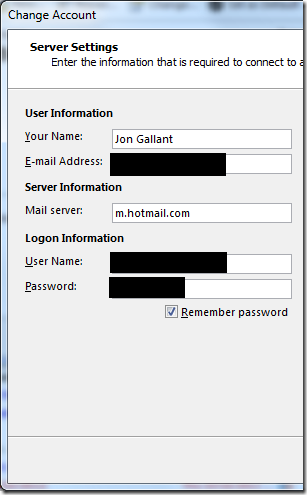
It took me way too long to figure out how to setup my outlook.com email address in Outlook 2013. It’s simple, but I couldn’t figure out what Mail Server to use it turned out to be m.hotmail.com, which I found deep in some forum somewhere.
Here’s the complete setup process:
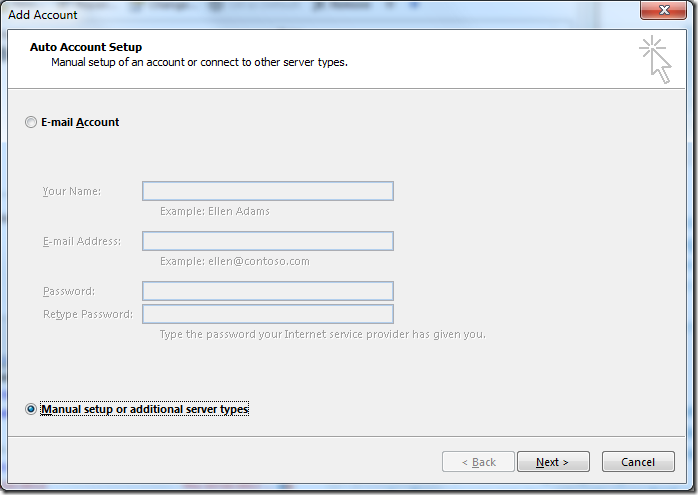
1. File –> Add Account and select “Manual setup or additional server types”. Click Next.
[
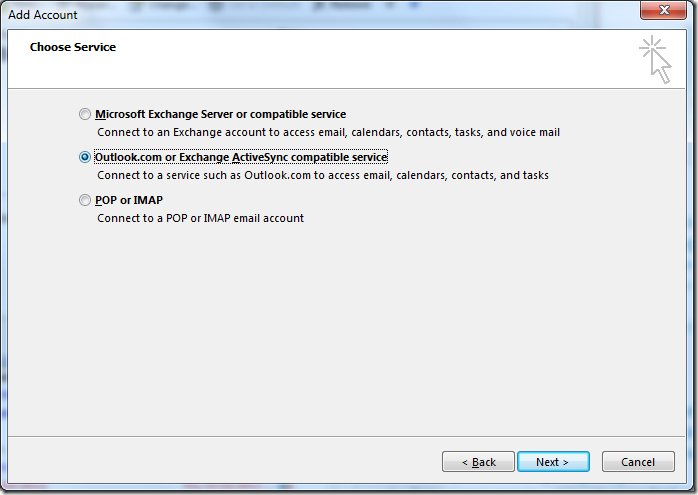
2. Select “Outlook.com or Exchange ActiveSync compatible service”
[
3. Enter your account info and enter “m.hotmail.com” into the Mail Server field.
[
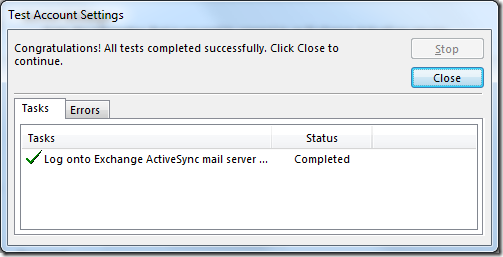
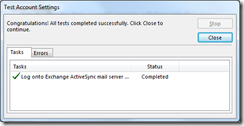
4. Done!
[
[
Jon
Share: