

How to Setup a Visual Studio Online (VSO) Git Repo in SourceTree
Here’s what you have to do to get a VSO git repo setup in SourceTree
Go to VSO Personal Access Tokens: https://{vso-account-name}.visualstudio.com/_details/security/tokens
Replace {vso-account-name} with your VSO account name
Click “Add”

Enter a Description and set your preferences for Expiration, Accounts and Scopes.

Click “Create Token”

Click “Copy Token” and store that somewhere that you can access later because you won’t see it again through VSO.

Install SourceTree: https://www.sourcetreeapp.com/
Click “Clone / New”

Enter “Source Path / URL” in this format:
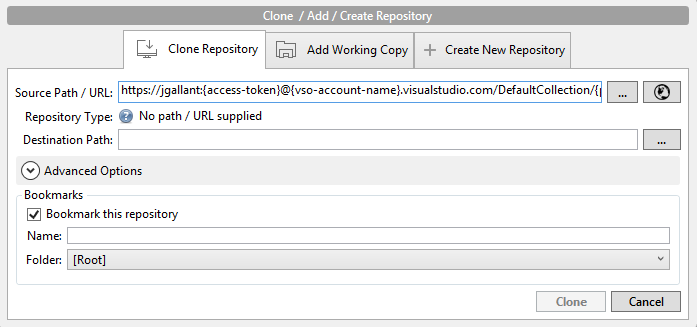
The best way to get this URL is to go to your VSO project in your browser and then add your username and access-token.
Note your username does not contain an “@” sign. Just use the username of the email address that you sign-in to VSO with.
With your cursor focus in the “Source Path / URL” input…hit TAB.
You should then see this:

If you don’t see that then something isn’t setup right. Your URL could be wrong or git might not be installed properly.
Hope this helps.
Jon
Share on LinkedIn
Quick Share: Your custom post text has been copied to your clipboard! Click the button below to open LinkedIn's share dialog, then paste it.
💡 Tip: LinkedIn will open in a new tab. Use Ctrl+V (or Cmd+V on Mac) to paste your text.
Note: LinkedIn will show the article preview. You can add your custom text above it.