
azd update - Stop Juggling Package Managers
If you’ve used the Azure Developer CLI, you’ve probably seen this message:
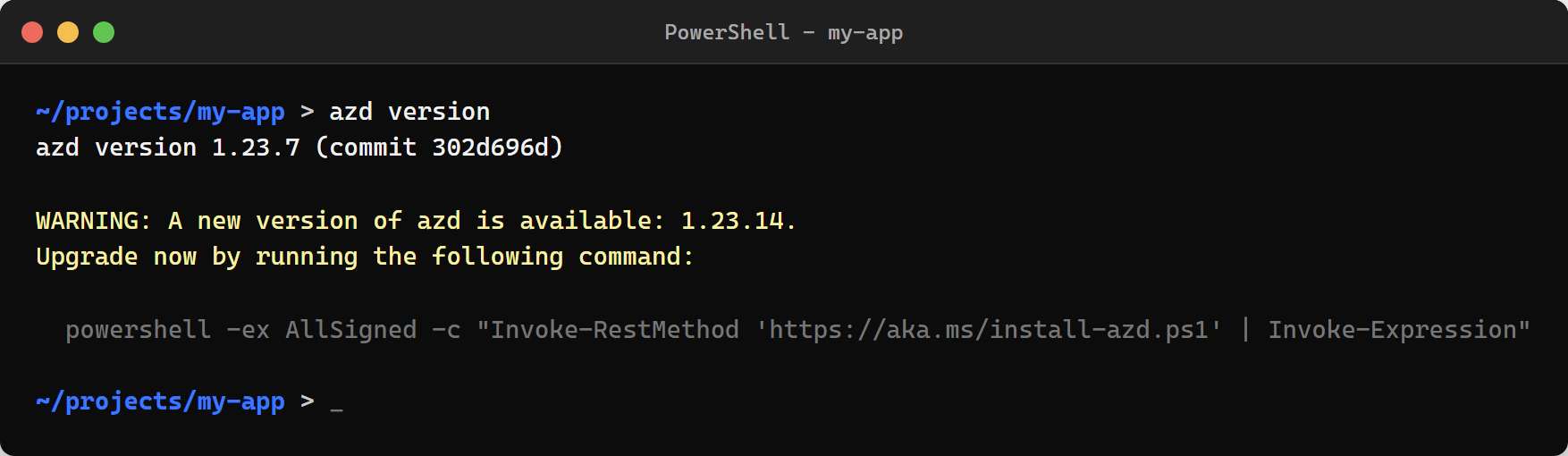
“A new version of azd is available.” And then it gives you a command to copy and paste. Except - which command? It depends on how you installed it. And if you’re like me and can’t remember how you installed it six months ago, good luck.
I hit this enough times that it started to bug me. I was working on azd app and kept getting this prompt every few days. I’d think “I’ll update later” and then forget. Then I’d hit a bug that was already fixed in a newer version. Classic. Someone filed an issue for it and the team shipped a fix.
The Old Way
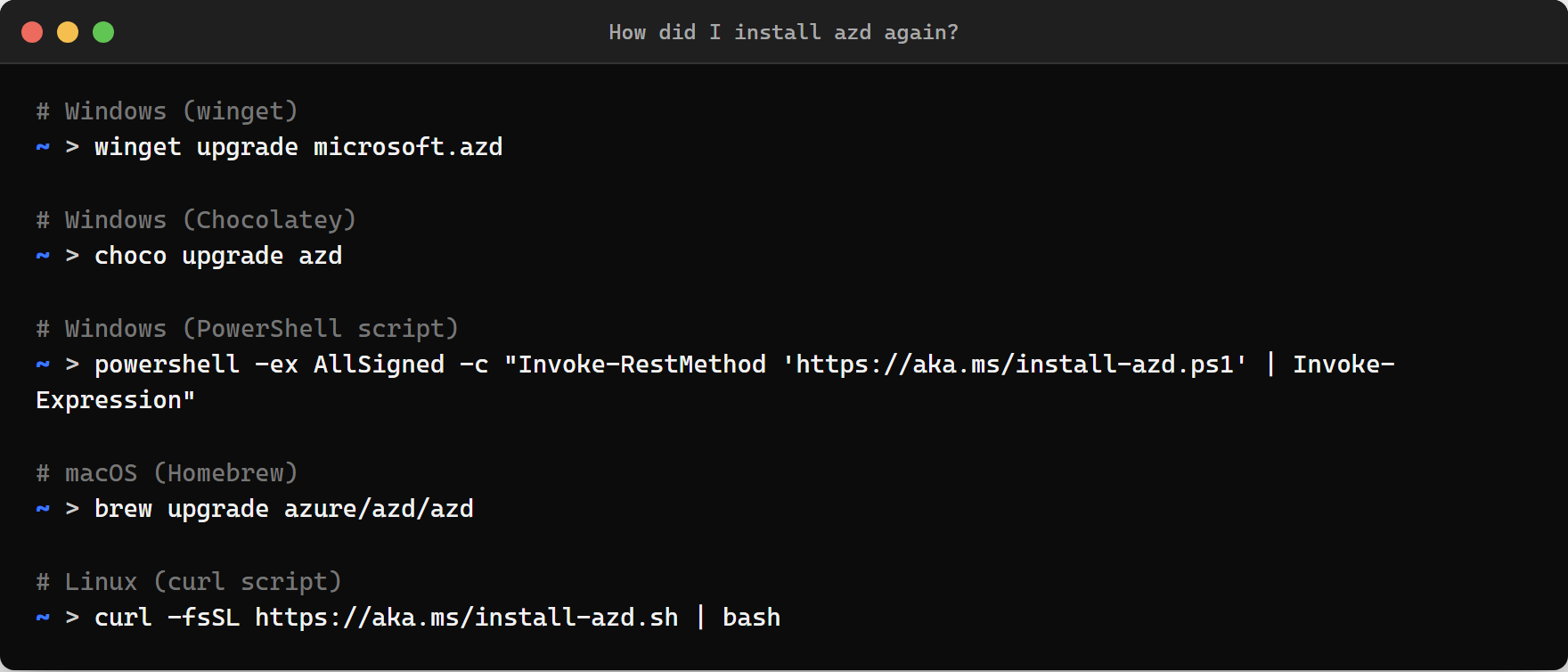
Before azd update, staying current meant knowing your installation method and running the right command for your platform:
Windows (winget):
winget upgrade microsoft.azdWindows (Chocolatey):
choco upgrade azdWindows (PowerShell script):
powershell -ex AllSigned -c "Invoke-RestMethod 'https://aka.ms/install-azd.ps1' | Invoke-Expression"macOS (Homebrew):
brew upgrade azure/azd/azdLinux (curl script):
curl -fsSL https://aka.ms/install-azd.sh | bashThat’s five different commands across three platforms. And if you forgot which package manager you originally used, you could end up with two copies of azd installed, fighting each other.
Not great.
The New Way
Now it’s just:
azd updateThat’s it. One command. Works on Windows, macOS, and Linux. Doesn’t matter how you installed it.
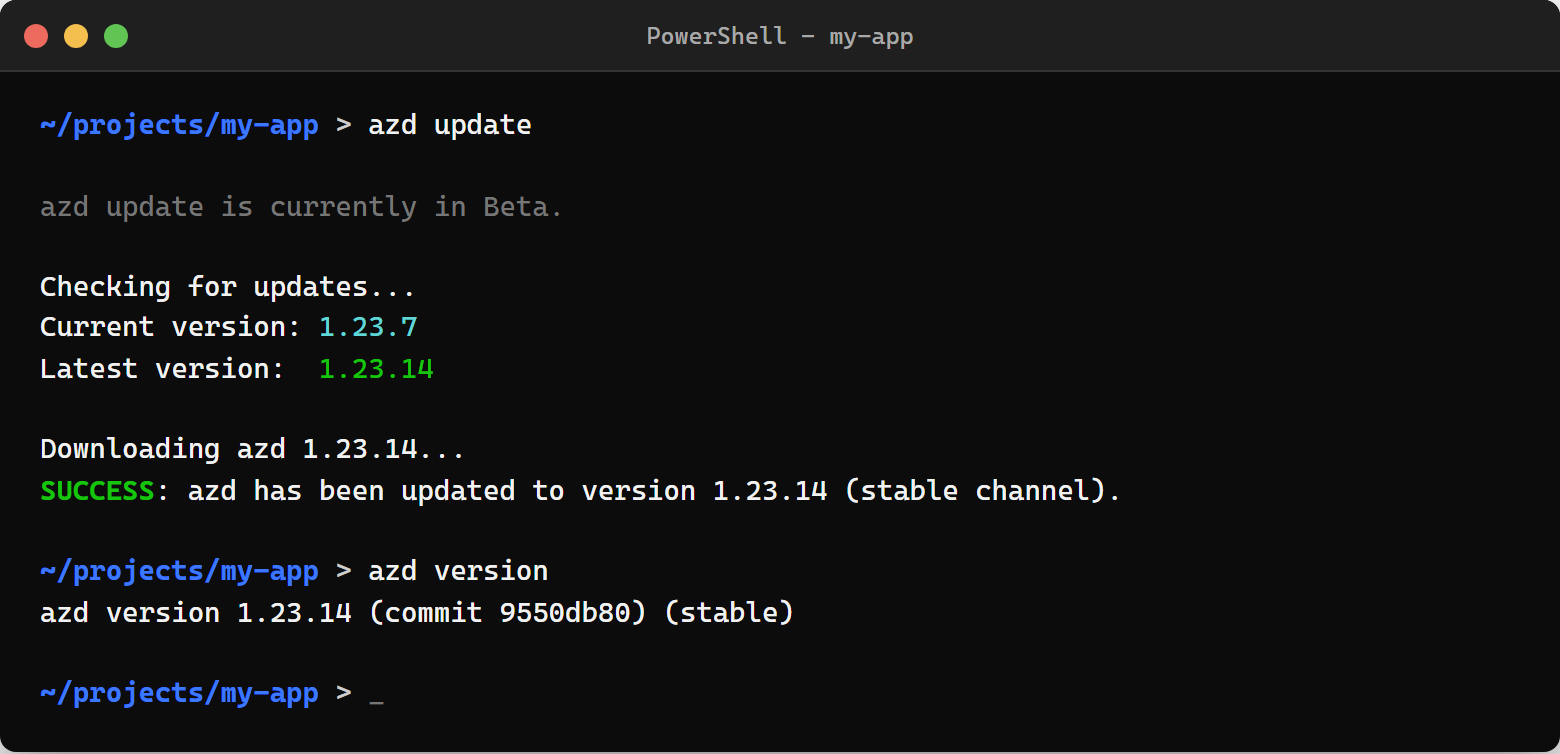
It tells you what version you’re on, what version it’s updating to, and confirms when it’s done. Clean and simple.
Channel Switching
This is what I actually use the most. You can switch between the stable release and the daily insiders build with a flag:
azd update --channel stableazd update --channel dailyThe daily channel gets you the newest features before they hit stable. If you’re testing something new or want to try a feature that just landed, switch to daily. When you want to go back to stable, one command.
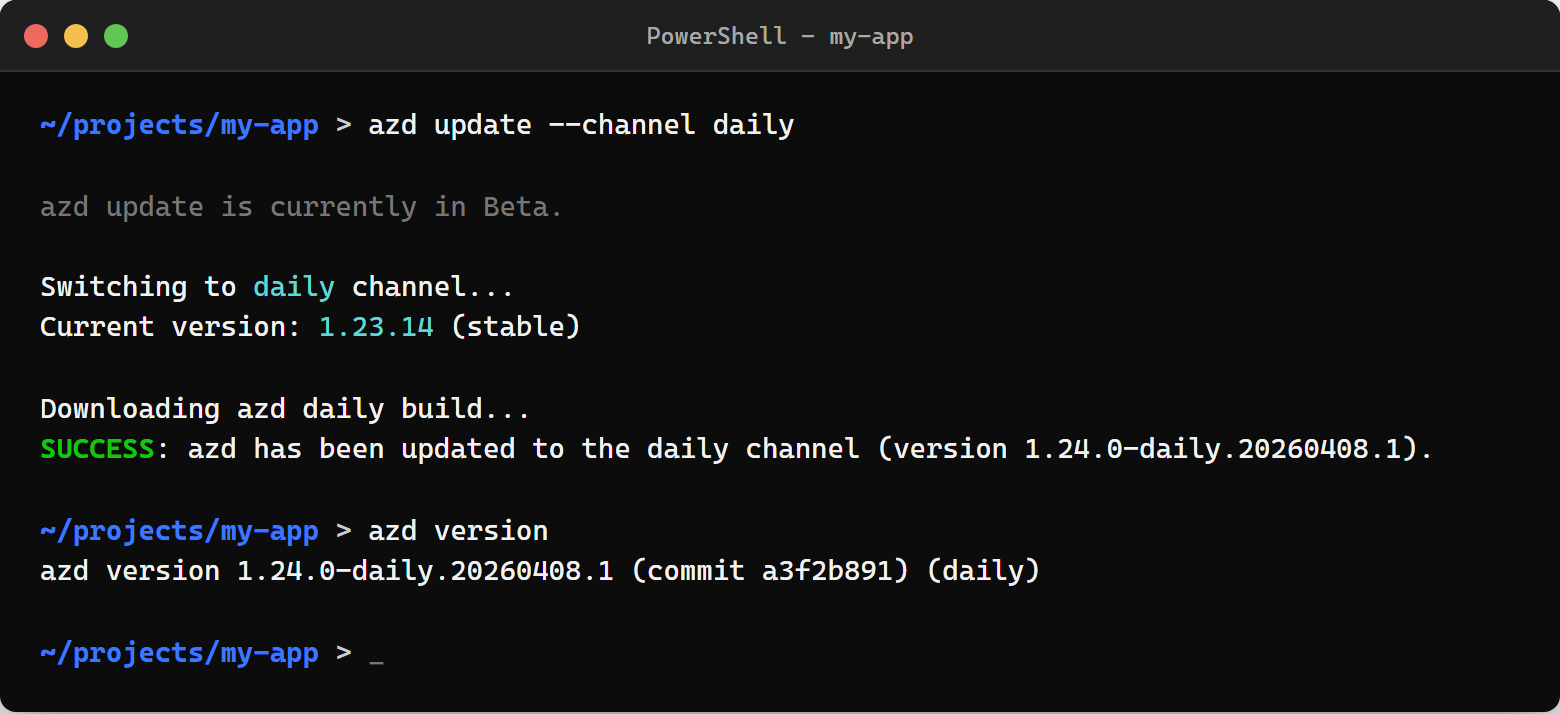
Fair warning - daily builds are daily builds. They might have rough edges. That’s the whole point of having them available though. Try things before they’re polished, find the issues, and report them.
Version Pinning
Need a specific version? Maybe you’re debugging something and want to reproduce it on the exact version a teammate is running:
azd update --version 1.23.13You can go forward or backward. If a new release breaks something, roll back while the team fixes it.
Look, It’s a Small Feature
I know, I know. But small friction adds up. I’ve seen this pattern so many times.
Every time a developer sees the “new version available” prompt and thinks “I’ll do that later” - that’s drift. People end up on old versions with known bugs because updating was just annoying enough to skip. Then they hit those bugs, file issues that are already fixed, and everyone wastes time.
azd update removes that friction. See the prompt, run the command, done. No context switching to remember your package manager. No opening a browser to find the install docs.
Try It
If you’re on a recent version of azd, try it now:
azd updateIf you’re on an older version that doesn’t have the command yet, you’ll need to do one last manual update using your original installation method. After that, azd update handles everything going forward.
Check your version with:
azd versionFile Issues
This is still relatively new. If you hit any issues - the update fails, it doesn’t detect your platform right, channel switching does something unexpected - please file an issue:
https://github.com/Azure/azure-dev/issues
The whole point of shipping this was to make keeping azd current as frictionless as possible. If it’s not frictionless for you, that’s a bug.
Resources
- azd update feature request: github.com/Azure/azure-dev/issues/6673
- Install azd (if you’re starting fresh): learn.microsoft.com/azure/developer/azure-developer-cli/install-azd
- azd CLI reference: learn.microsoft.com/azure/developer/azure-developer-cli/reference
- File issues: github.com/Azure/azure-dev/issues