

How to Poll Long Running Async Requests in Postman
Some HTTP requests are long running and instead of asking users to wait for the long running operation to complete, they will return a “request status URI” that, when requested, will return a running/success/failure message.
For example, when you create a new Azure IoT Hub via this request:
https://management.azure.com/subscriptions/:subscriptionId/resourceGroups/:resourceGroupName/providers/Microsoft.Devices/IotHubs/:resourceName?api-version={{api-version}}
```text
It will return an Azure-AsyncOperation header with the following URI:
```bash
https://management.azure.com/subscriptions/f9766876-e50b-006f-9ad3-5afb7bb8cf45/resourceGroups/jongtrash/providers/Microsoft.Devices/IotHubs/jongiothubtest2/operationResults/NzRkNDQ3NGUtN2NmNS00YWLWIyZGEtNTMxZjEwYzJjNWI4?api-version=2016-02-03&asyncinfo
```text
Which will have a payload like this when still running:
```json
{ "status": "Running"}
```text
Or this when the IoT Hub has been created:
```json
{ "status": "Succeeded"}
```sql
Here’s how to deal with this scenario in Postman.
The flow of requests will be executed in this order:
1\. Execute the long running request.2\. Execute the check long running request status request.
3\. If still running, then delay for 30 seconds and repeat #2. If not still running, then pass or fail the request based on status returned.
## Create a “Delay” Request
This will create a Postman timeout that doesn’t chew up your CPU.
### URI
```bash
https://echo.getpostman.com/delay/{{delay}}
```markdown
“delay” is the number of minutes to delay before the next execution.
### Tests
After the request is delayed it will execute this “test” which checks to see if there’s a “nextRequest” environment variable and then calls the “setNextRequest” method to execute it.
```javascript
var next = postman.getEnvironmentVariable('nextRequest');if(next !== ''){ postman.setNextRequest(next);}
```sql
## Create Long Running HTTP request
### URI

```bash
https://management.azure.com/subscriptions/:subscriptionId/resourceGroups/:resourceGroupName/providers/Microsoft.Devices/IotHubs/:resourceName?api-version={{api-version}}
```markdown
### Headers
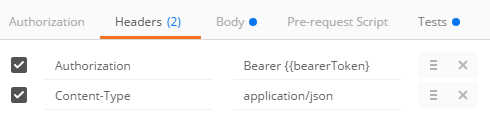
```javascript
Authorization:Bearer {{bearerToken}}Content-Type:application/json
```markdown
> See [How to Use Azure Active Directory (AAD) Access Tokens in Postman](/azure-active-directory-access-tokens-postman/) for instructions on how to get a bearer token.
### Body
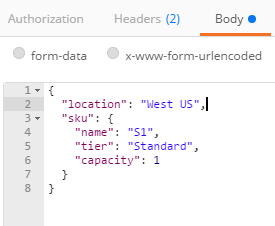
```javascript
{ "location": "West US", "sku": { "name": "S1", "tier": "Standard", "capacity": 1 }}
```markdown
### Tests
This will first see if the request was successful and then put the Azure-AsyncOperation URI into an Environment Variable (to be executed later). It then sets the “nextRequest” environment variable that will be executed by
```javascript
var json = JSON.parse(responseBody);tests["Create or Update IoT Hub"] = !json.error && responseBody !== '' && responseBody !== '{}';
postman.setEnvironmentVariable("createUpdateIoTHubResponseUrl", postman.getResponseHeader("Azure-AsyncOperation"));postman.setEnvironmentVariable("nextRequest", 'Verify Create or Update IoT Hub');postman.setNextRequest('Verify Create or Update IoT Hub');
```markdown
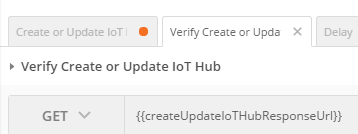
## Setup Long Running Status Check Request
This request will call the “Azure-AsyncOperation” URI, check the status, call Delay, which will then execute the status check again.
### URI
```javascript
{{createUpdateIoTHubResponseUrl}}
```markdown
### Headers
```javascript
Authorization:Bearer {{bearerToken}}
```markdown
### Tests
Add the following test to check the status and if still running will set the next request to ‘Delay’, which in turn will execute this request again.
```javascript
var test = 'Verify Create or Update IoT Hub';var json = JSON.parse(responseBody);
if(json.error){ tests[test] = false;}else{ if(json.status !== 'Running'){ tests[test] = json.status === 'Succeeded'; postman.clearEnvironmentVariable('nextRequest'); }else{ postman.setNextRequest('Delay'); }}Execute Requests
When you execute the tests in Collection Running, the output will look like the following:

When you execute in Newman, the requests will look like the following:

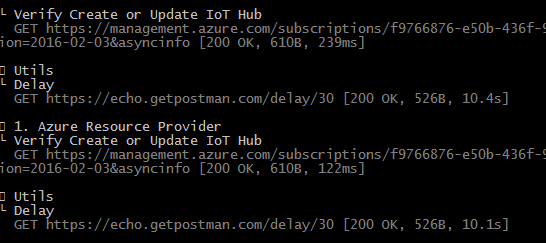
Until you get a success message:

Jon
Share on LinkedIn
Quick Share: Your custom post text has been copied to your clipboard! Click the button below to open LinkedIn's share dialog, then paste it.
💡 Tip: LinkedIn will open in a new tab. Use Ctrl+V (or Cmd+V on Mac) to paste your text.
Note: LinkedIn will show the article preview. You can add your custom text above it.